
Help
Getting started with PicsCrew
Everything from choosing your plan to your crew's first photo, step by step. Most owners are set up in under ten minutes.
For account owners
Set up PicsCrew in 7 steps
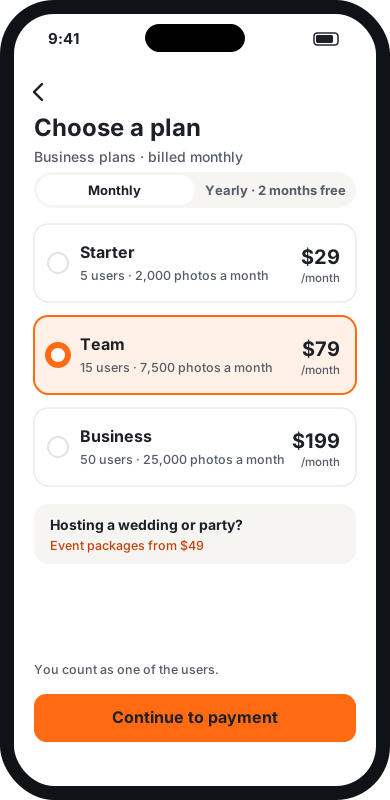
Choose a plan
Create your account in the PicsCrew app or at picscrew.com, then choose the plan that fits. Crews and field teams pick a Business plan by team size, monthly or yearly. Weddings and parties pick an event package. One person on their own picks Solo.
- Business plans: Starter (5 users), Team (15) or Business (50), each with a monthly photo allowance.
- You count as one of the users if you take photos too.
- Prices on picscrew.com can be lower than in the app, because app stores charge a fee. Event packages are sold on picscrew.com.
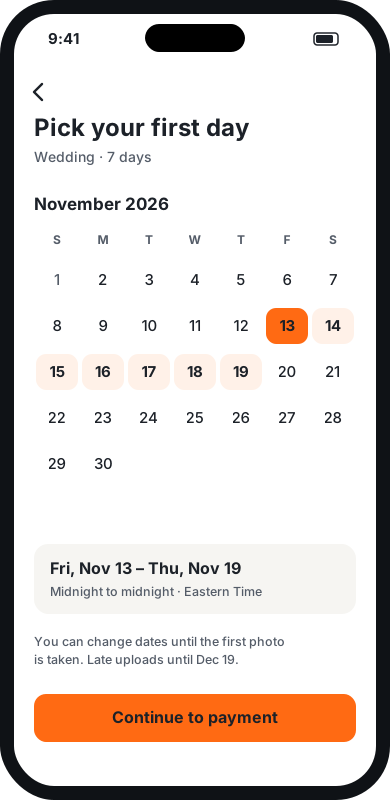
Hosting an event? Pick your dates
Event packages run for set days: choose the first one. Each day runs from midnight to midnight in the event's time zone, set to yours; change it to where the event is. Business plans start straight away and skip this step.
- Before the first day, the app shows "Scheduled" and the camera stays locked.
- You can move the dates any time before the first photo is taken.
- The Wedding package adds 30 days afterwards for guests to send late photos.
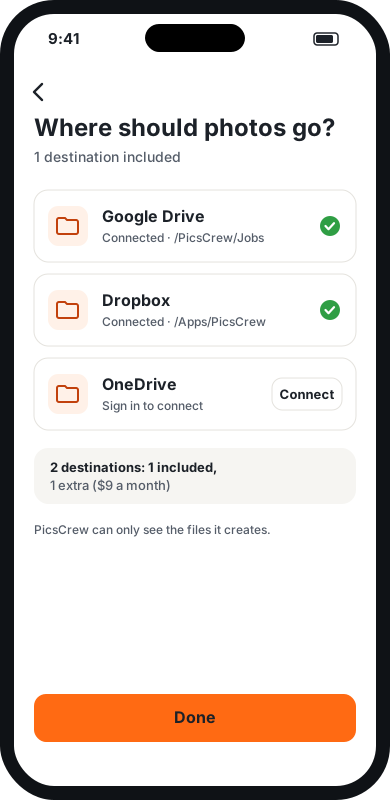
Choose where photos go
Connect Google Drive, Dropbox or OneDrive by signing in once, and pick a folder. Your plan includes one or more destinations; an extra one can be added for the rest of the month or every month.
- PicsCrew can only see the files it creates in your storage, nothing else.
- Send to two places at once, such as your Drive and a client's Dropbox, with an extra destination.
- If a connection stops working, you get an alert and photos wait safely until it's fixed.
- Our pick: Google Drive. It has the most free space (15 GB), one Google sign-in connects it, and you can share an event's folder or download everything in one go.
- Dropbox: 2 GB free. Photos go to Apps › PicsCrew, and each video is kept under about 140 MB, Dropbox's upload limit.
- OneDrive: 5 GB free, or 1 TB with Microsoft 365. Photos go to Apps › PicsCrew.
- Running out of space? Disconnect and connect another Google account: new photos go there, and photos already delivered stay where they are. For a big wedding, keep a spare Gmail ready.
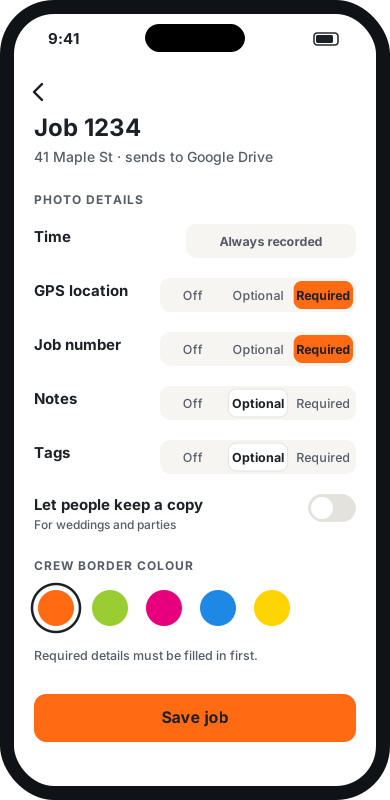
Set up your jobs
A job can be an address, a work order, a claim or an event. Each job can send photos to its own destination. For every detail, choose Off, Optional or Required.
- Time is always recorded, from network time so it can't be faked.
- GPS, job number, notes and Before / After / Damage / Completed tags are up to you.
- Load your job numbers as a pick list so nobody mistypes them.
- Pick the border colour your crew sees on the camera screen.
- Hosting a wedding or party? Turn on “Let people keep a copy” so guests also get their own photos. Leave it off for work.
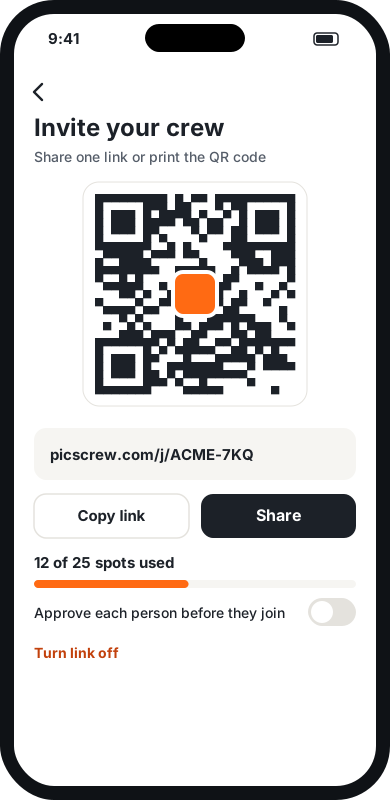
Invite your crew with one link
Share your crew link by text, email or chat, or print the QR code on a job sheet. Each crew member opens it, enters their email and makes their own password. Event guests just scan the QR code on the table and type their name. You never create accounts or handle passwords.
- Joining stops automatically when your plan's user spots (or your event's guest spots) are full.
- Turn on "Approve each person" to check people before they get in.
- Turn the link off any time. Remove anyone instantly; their spot is freed.
- Prefer email invites? Paste a list or upload a spreadsheet, and invites go out a batch at a time.
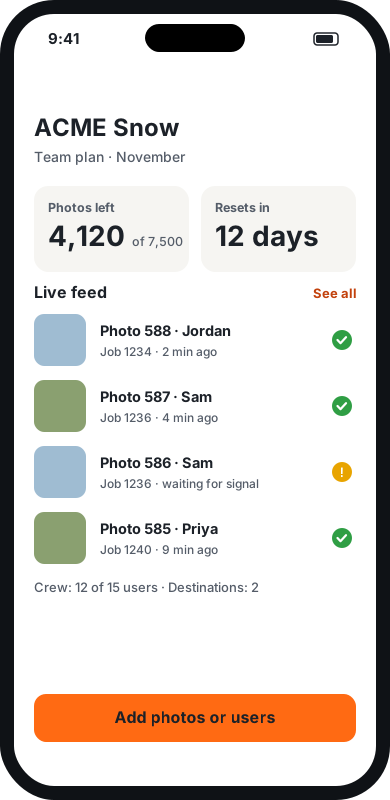
Watch photos arrive
Your dashboard shows the photos left this month (or the time left on an event), and a live feed of every photo: who took it, which job, and whether it's been delivered.
- Photos are filed in a folder per job, named like
2026-11-13_0642_J1234_017.jpg. - Time, GPS, job number, notes and tags are stored inside each photo file.
- A yellow mark means the photo is waiting for the crew member's phone to get signal.
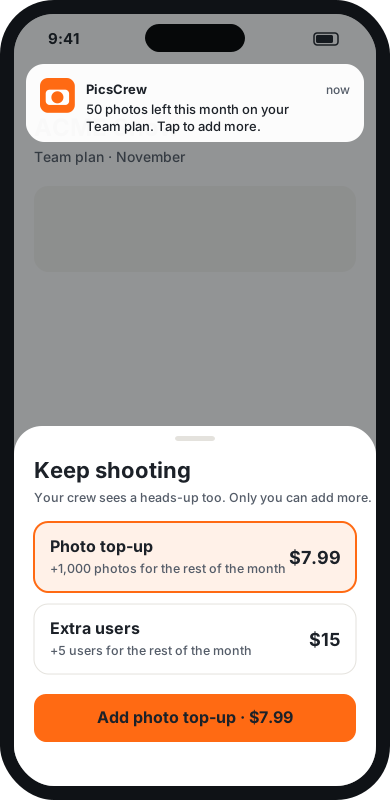
Stay ahead of your limits
We remind you before you run out: when 100 photos are left this month, or 2 hours before an event ends. Your crew sees the reminder on their phones too, so nobody is caught out, but only you can add more.
- Add a photo top-up or extra users for the rest of the month, or keep extra users every month.
- Business plans reset their photos at the start of each month.
- If a plan or event ends, the app shows "Expired". Photos already taken still finish sending.
For crew members and guests
Join a crew and start shooting
You don't need to pay for anything or change any settings. Your organizer has done that.
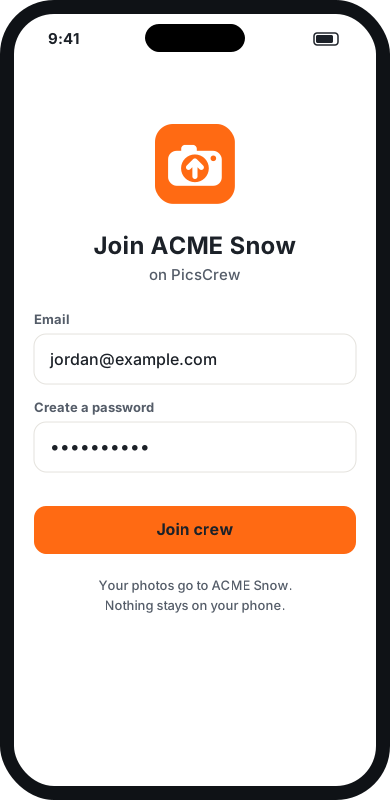
Open the link or scan the QR code
It takes you to the PicsCrew app (or the App Store or Google Play to install it first). Enter your email and create a password. That's it.
- Your account works on one phone at a time. Sign in on a new phone and the old one signs out.
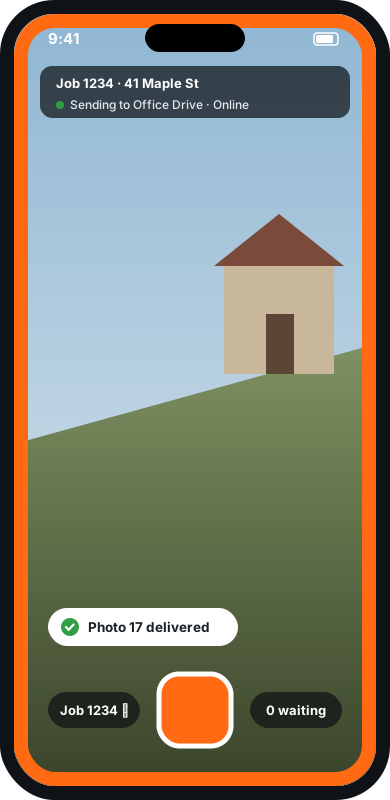
Take photos
The coloured border tells you you're in the work camera, not your phone's normal camera. The top bar shows the job and where photos are going.
- A green check means the photo was delivered and removed from your phone.
- Photos don't go into your phone's gallery, unless your organizer lets people keep a copy (common at weddings and parties). Then each photo is also saved to your Photos app, unless you turn off “Save a copy of my photos to this phone” in the app's Account menu: that choice is always yours.
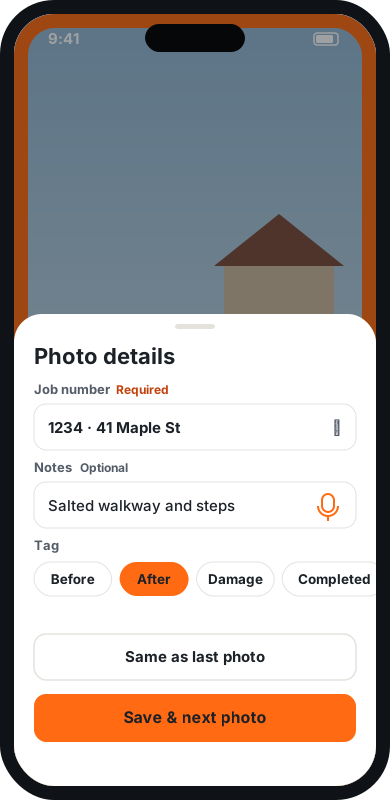
Add the details
After each photo, PicsCrew asks for the details your organizer switched on. Required ones must be filled in before the next photo; optional ones can be skipped.
- "Same as last photo" fills everything in with one tap.
- Tap the microphone to speak your notes instead of typing.
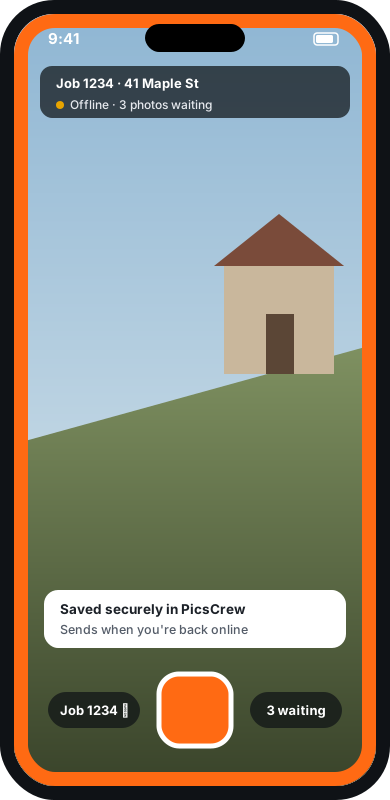
No signal? Keep shooting
Photos are saved securely inside PicsCrew and send on their own when you're back online, even if you close the app or restart your phone.
- Don't delete the app or sign out while photos are waiting, or they'll be lost.
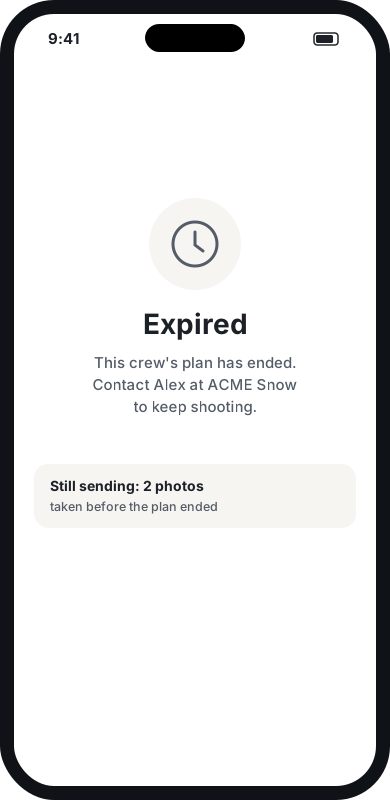
When the plan or event ends
The app shows "Expired" and the camera locks. Photos you already took still finish sending. To keep shooting, contact your organizer; only they can add more.
Screens shown are illustrations. The app may look slightly different at launch.
For event hosts
Run a photo challenge game
A photo scavenger hunt for any event package: you list the challenges, guests pick one in the camera, and the first photo to arrive for each one wins. Set it up in advance and start it when the party is ready.
1. Write your challenges in advance
On your dashboard, open Events, then your event, then Photo challenges. Type one challenge per line, up to 20, such as "Something blue" or "Photo with the couple". To add a prize, put it after a dash: "Something blue — Free drink at the bar".
2. Choose who wins, then save
Pick "The first photo to arrive wins", or "I'll pick the winners" to choose them yourself. One win per guest is the default, so prizes go round the room; tick the box to let someone win more. Save challenges. Guests see nothing yet.
3. Start the game
When you're ready, at dinner or after the first dance, press Start the game. Within half a minute a Challenges row appears above the shutter on every guest's phone. Announce it, or let the slideshow do it.
4. Guests play
A guest taps a challenge, then takes the photo. Challenges already won show the winner's name. The winner's phone says "You won!", and the live slideshow shows their photo with a banner and the prize.
5. Check the winners
The same dashboard section lists each winner with their photo. Not valid hands the win to the next photo in line; Pick another winner lets you choose any entry. A photo hidden from the slideshow never counts.
6. End the game
Press End the game to close it. Guests no longer see the challenges, photos taken before the end still count when they arrive, and the slideshow shows the final results. Start again carries on with the same winners. Photos taken while it was ended never count, and wins from before still count towards one win per guest. To start fresh, delete the challenges from the list, save, then add them back.
PicsCrew only names the winners: you hand out the prizes. The banner and scoreboard need the live slideshow, which comes with Celebration and Wedding.
Troubleshooting
A crew member can't join
Check that your plan has free user spots (or your event has guest spots), that your crew link is turned on, and whether "Approve each person" is on (if so, approve them from your team list). Remember you count as one of the spots if you take photos. Someone you removed earlier always waits for your approval when they rejoin through the crew link.
Photos aren't arriving in my Drive, Dropbox or OneDrive
Look at your dashboard. A yellow mark means the photo is waiting for signal on the crew member's phone. A "Destination disconnected" alert means you need to sign in to that storage again; photos wait safely until you do.
Where exactly are my photos saved?
In the folder you picked, inside a folder per job. File names start with the date and time, then the job number and photo number, for example 2026-11-13_0642_J1234_017.jpg.
How do I delete my account?
In the app: tap the job bar at the top of the camera, then Delete account. On the website: picscrew.com/account/delete.php. Deleting an owner account stops any subscription, removes PicsCrew's access to your storage and signs out your crew. Photos already delivered stay in your own storage.
A crew member got a new phone
They just sign in on the new phone. The old phone signs out. If the old phone still has photos waiting, let them finish sending first.
I need to change my event dates
You can move an event's dates any time before the first photo is taken. After that, the dates are fixed, but you can add an extra day.
We ran out of photos in the middle of a job
Add a photo top-up from the app or picscrew.com, and your crew can carry on straight away. For an event, add an extra day. Photos taken before the limit are still delivered.
Still stuck? Email hello@picscrew.com and we'll help.